Wordpress plugin for Halo to create an opportunity from Contact Us for Wordpress.
Installation and usage
Installation & Setup — Halopsa Forms v1.1
Full walkthrough for getting the plugin running against a HaloPSA tenant. No
licence key is required at any point.
There are three stages: create the API application in Halo, install the plugin in
WordPress, then connect the two.
Stage 1 — Create the API application in HaloPSA
Do this first; you need the Client ID and Secret before the WordPress side is any
use.
In Halo, go to Configuration → Integrations → Halo API.
Note the two URLs shown at the top of that page. You will need both:
Resource Server — normally https://<yourtenant>.halopsa.com/api
Authorisation Server — normally https://<yourtenant>.halopsa.com/auth
Click View Applications → New.
Fill in:
Application Name — e.g. WordPress Web Form
Authentication Method — Client Credentials
Login Type / Agent to log in as — pick the agent the created
Opportunities should be attributed to. A dedicated non-human agent (e.g.
"Web Integration") is tidier than a real person's account.
Save. Halo generates the Client ID and Client Secret. Copy the secret
now — depending on version it may not be shown again in full.
Open the Permissions tab on the application and grant access. The plugin
requests the all scope, so the application needs permissions sufficient to
create Opportunities. If you prefer to scope it down, the minimum is
read + edit on tickets/opportunities.
Note for on-premise / multi-tenant Halo
The plugin builds its token URL as {Authorisation Server}/token by simple
string concatenation. That is fine for hosted Halo, where the tenant is inferred
from the subdomain.
If your install requires a ?tenant= query parameter on the token request, this
plugin cannot supply it — appending it to the Authorisation Server field
would produce .../auth?tenant=xyz/token, which is not a valid URL. You would
need to modify get_access_token() in halopsa_integration.php to add the
parameter properly.
A successful activation adds a Halopsa Forms item to the admin sidebar with a
pin/press-this icon.
Stage 3 — Connect and configure
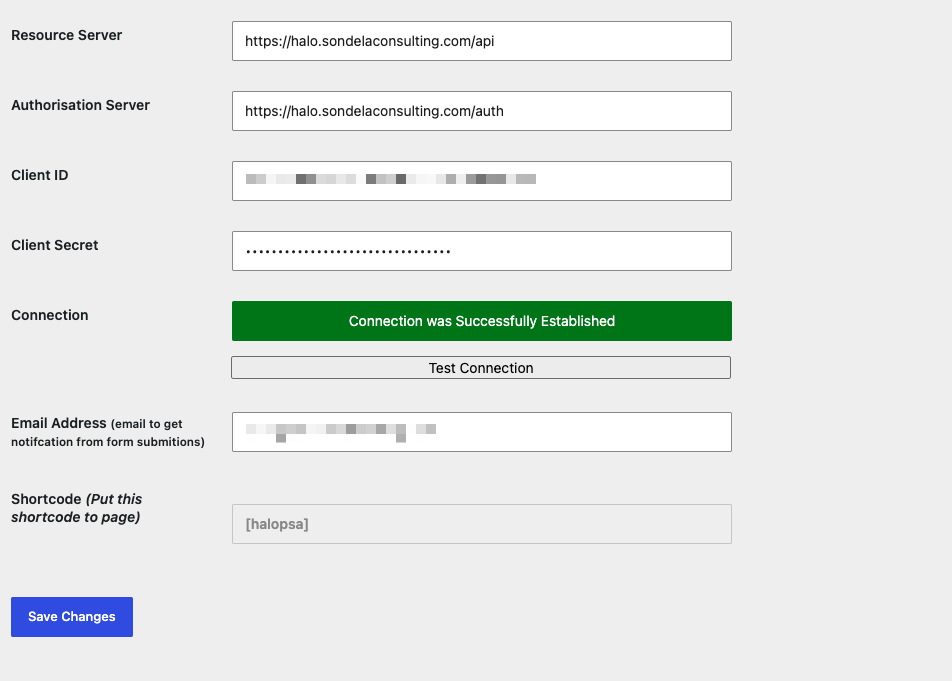
Go to Halopsa Forms in the sidebar. In v1.1 this page opens straight onto the
settings — in v1.0 it demanded a licence key first.
Field
Value
Resource Server
https://<yourtenant>.halopsa.com/api
Authorisation Server
https://<yourtenant>.halopsa.com/auth
Client ID
From the Halo application in Stage 1
Client Secret
From the Halo application in Stage 1
Email Address
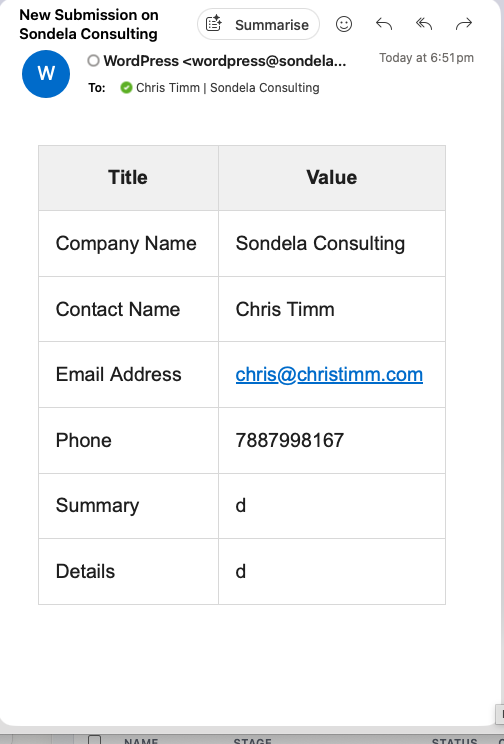
Optional. If set, every submission is also emailed here
Do not put a trailing slash on either URL — the plugin appends /token and
/Opportunities itself, so a trailing slash produces a double slash.
Click Save Changes. Saving is what triggers the token request — the
connection is tested on save, not by the button.
Reading the Connection row
Display
Meaning
Green — "Connection was Successfully Established"
Halo returned an access token. Credentials and URLs are correct.
Red — "Please Check Your Keys"
No token came back. Check the Client ID/Secret, the Authorisation Server URL, and that the Halo application is enabled with permissions granted.
The Test Connection button on this page does nothing — its click handler is
empty in the source. Ignore it and use Save Changes to re-test.
Stage 4 — Put the form on a page
Add the shortcode to any page or post:
[halopsa]
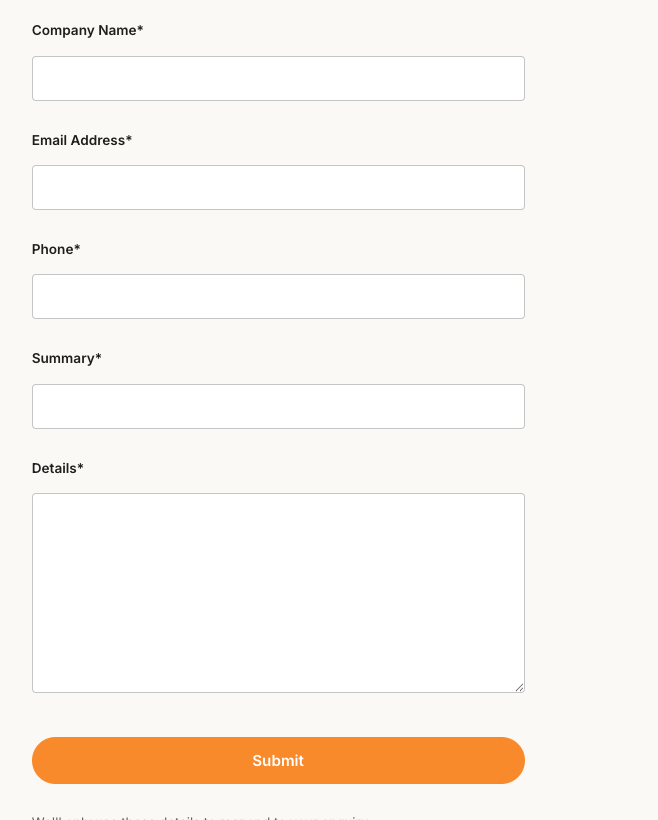
The form renders with its own inline CSS and pulls the Poppins font from Google
Fonts. Fields: Full Name, Company Name, Email Address, Phone, Summary, Details —
all required, validated in the browser before submitting.
What happens on submit
halopsa.js validates all six fields are non-empty and shows a spinner.
It POSTs to WordPress's admin-ajax.php with action halopsa_sumbit.
The handler requests a fresh OAuth token (every submission gets a new one —
nothing is cached).
If a notification email address is set, the email goes out.
It POSTs to {Resource Server}/Opportunities creating a record with
tickettype_id: 6, carrying the company, contact, email, phone, summary and
details as fields on that Opportunity.
On a response containing an id, the form resets and shows a green
"Thanks, Form is submited". Otherwise it shows
"Somthing is wrong with server please contact support."
Both of those user-facing strings contain typos in the source. They are in
halopsa_sumbit_funtion() in halopsa_integration.php if you want to correct
them.
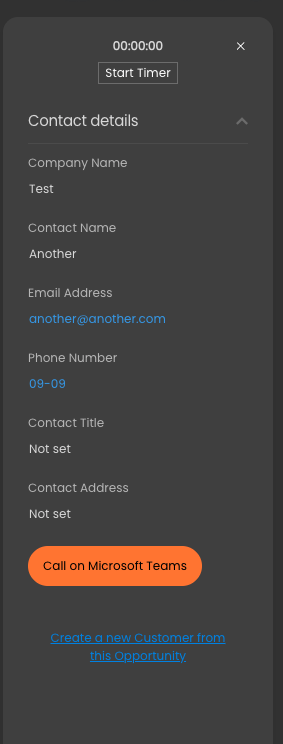
Note this creates one record — an Opportunity. It does not separately create
a Lead, Client or User object in Halo; the contact details ride along as fields
on the Opportunity.
Troubleshooting
Connection row is red
Check for a trailing slash on the Authorisation Server. Confirm the application
in Halo uses Client Credentials, is enabled, and has permissions granted on its
Permissions tab. Confirm the secret was copied in full.
Connection is green but submissions fail
The token is fine, so the problem is the Opportunities call. Check the Resource
Server URL, and that the agent the application logs in as has rights to create
Opportunities.
Form does nothing when submitted
Almost always a JavaScript conflict or jQuery not loading. Open the browser
console. The plugin depends on jQuery being present.
Nothing renders where the shortcode is
Confirm the plugin is activated, and that the shortcode is in a content block
that renders shortcodes — some page builders need a dedicated shortcode widget.
No notification emails
The plugin uses wp_mail(). If WordPress email is not configured on the site,
nothing will send. Install an SMTP plugin. The Opportunity is still created
regardless — email failure does not block submission.
Before going live on a public page
The submission endpoint is registered for logged-out visitors with no nonce,
captcha or rate limiting. Anyone who finds it can POST to it in a loop and
create Opportunities in your Halo tenant in bulk.
For an internal or gated page this is fine. For a public contact page, put a
captcha or rate limit in front of it first. See the Known Issues section of
README.md.
Uninstalling
Deactivate and delete under Plugins. Settings are stored as WordPress options
(resource_server, authorisation_server, client_id_option,
client_secret_option, halopsa_admin_email, halopsa_status) and are not
removed automatically — the plugin has no uninstall hook. Remove them manually
from wp_options if you want a clean removal, particularly
client_secret_option, which holds your Halo secret in plain text.
The now-unused halopsa_license_key option may also still be present from v1.0.
It is inert and safe to delete.